TurboScan™ Pro: PDF scanner
Piksoft Inc.Business
4.82.45K Reviews
- Version
- Varies With Device
- Installs
- 100.00K
- Age Rating
- Everyone
Screenshots
Our Review of TurboScan™ Pro: PDF scanner
 Analysis by Appyee
When I first open TurboScan™ Pro, I expect a practical way to turn paper into a file I can use, rather than a complicated office tool. That is the right mindset for this Business app: it is designed to make everyday document capture more convenient, especially when a scanner is nowhere nearby. I would reach for it after a meeting, while sorting household paperwork, or when someone needs a signed page sent promptly.
The first success I would aim for is modest: capture one clean page, check its edges, and save it as a PDF. Starting with a single sheet makes it easier to learn how the camera handles framing and lighting before moving on to a longer document. A flat surface, even light, and a background that contrasts with the paper give the edge detection a clearer outline to work with.
What to expect from a phone scanner
A phone scanner trades the fixed, predictable setup of a desktop machine for convenience. You can capture a page wherever you are, but the result depends more on how you hold the phone and what the light is doing. I find that distinction useful to keep in mind: TurboScan can make paper easier to handle digitally, but it cannot make a crumpled page, deep shadow, or handwritten note as consistent as a carefully prepared original.
That makes it especially helpful for receipts, forms, meeting handouts, and short contracts that need to be stored or shared. It is less compelling if your work involves large batches of pages every day, precise archival requirements, or a need for automatic text search across a document library. For those jobs, a dedicated scanner or a document-management workflow may be a better fit.
Getting ready for the first scan
TurboScan is developed by Piksoft Inc. and costs $5.99. It is rated for Everyone, so its intended audience is broad, though the useful question is whether you will scan often enough to value a paid scanner app. The app has an average rating of 4.8 from around 20,000 ratings, with about 2,400 written reviews and over 100,000 installs. It has been available since April 7, 2014, giving it a long presence in the mobile scanning category.
Before opening the camera, decide what the scan is for. A receipt you only need to keep for reference does not need the same careful framing as a page that will be printed or sent to a client. Clear away objects around the paper, smooth it as much as possible, and avoid placing it directly beneath a hard shadow. These small choices often matter more than trying to fix a poor capture afterward.
If you are scanning several pages, keep them in order before you begin. That simple habit reduces the chance of assembling a PDF with a page out of place, particularly when paperwork includes similar-looking forms. I would also give the finished file a descriptive name immediately; a title such as “March travel receipts” is easier to find later than a generic scan label.
Scanning with Simplicity
First things first, the ease of use. You know those apps that require a PhD just to get started? Well, TurboScan™ Pro is the complete opposite. From the moment you open it, you’re greeted with a straightforward interface that even the least tech-savvy among us would find a breeze. Just point your phone at anything you want to scan, hit the button, and voila! You’ve got yourself a digital copy.
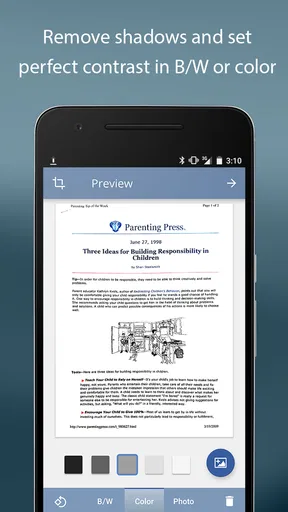
Now, let’s talk about the quality of these scans. I was pretty impressed with how crisp and clear the documents turned out. The app uses advanced algorithms to enhance the image, ensuring that every detail is captured. Whether it’s a multi-page contract or a simple receipt, everything looks sharp.
Features that Stand Out
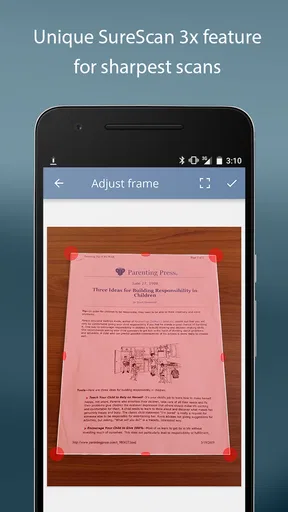
One of the best features of this app is the "SureScan" mode. It’s perfect for those low-light situations where you’d typically end up with a blurry mess. This mode captures three images and combines them to give you one perfect scan. Game-changer, right?
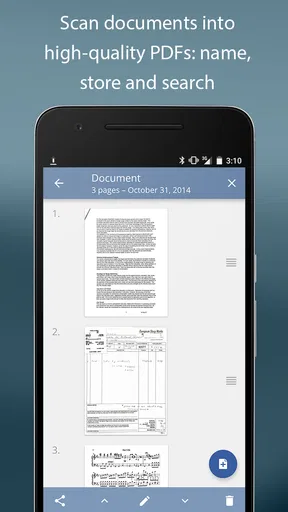
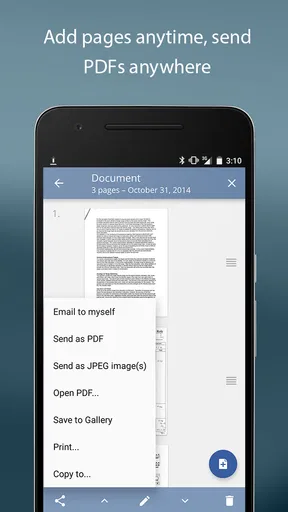
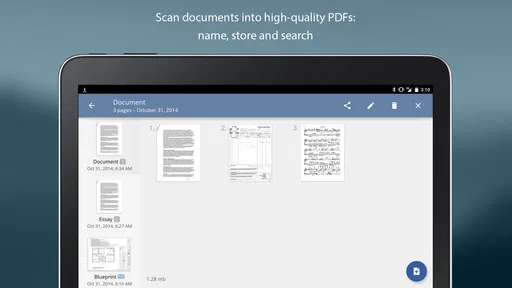
Another handy feature is the ability to scan multiple pages and save them as a single PDF. If you’ve ever had to scan a multi-page document only to end up with a bunch of individual images, you’ll know how invaluable this is.
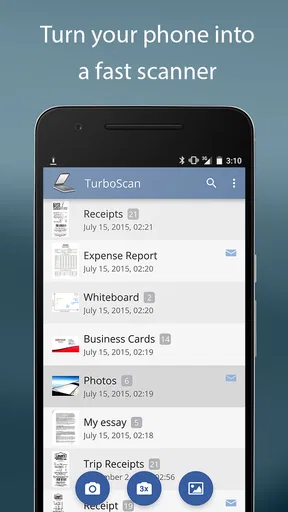
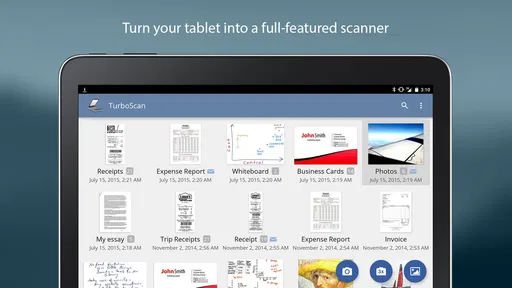
And, for those of us who like to stay organized, the app lets you name and organize your documents right within the app. You can even email them directly or upload them to cloud services like Dropbox or Google Drive without leaving the app. Talk about efficiency!
A useful workflow for real paperwork
Here is a realistic use case: I have a paper form to return, a receipt to keep, and a few pages of notes from a meeting. I would capture the form first while it is still flat, check that all four edges are included, and make sure the writing remains readable. I would then scan the notes in their original order and keep them together as one PDF, rather than creating a separate file for every page. Finally, I would name the receipt in a way that connects it to the purchase or expense, then send the documents to the person or storage service that needs them.
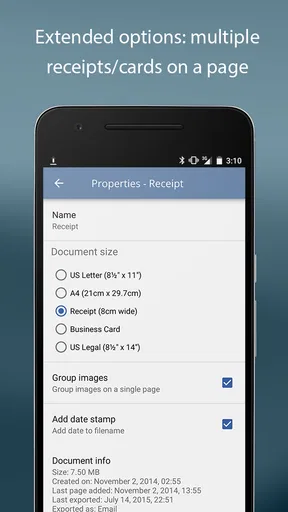
The small judgment call is whether to combine pages. A contract or set of meeting notes usually belongs in one file because the pages make sense together. Receipts from unrelated purchases are often easier to find later as separate, clearly named documents. The ability to create a multi-page PDF is useful, but it does not mean every scan should be bundled together.
For a page that looks dull or uneven, I would try improving the physical setup before repeating the capture: move the paper into brighter, more even light and hold the phone steady. SureScan is a helpful option in dim conditions, but it is not a substitute for legible source material. If the page is glossy, curved, or covered by a strong shadow, changing the angle or location can be more effective than relying on image processing.
The Little Things Matter
One thing I truly appreciate is the app’s ability to detect document edges automatically. You don’t have to worry about aligning your phone just right. It’s like having a personal assistant who tidies up your scans for you.
The app also supports multiple languages, which is a nice touch for those working in international environments or dealing with documents in different languages.
Automatic edge detection is most useful when the paper is clearly separated from the surface beneath it. If the sheet blends into a pale desk, or if another object touches its edge, I would inspect the crop rather than assuming it is perfect. A quick check before saving is a worthwhile step: a clipped signature or missing line can turn a convenient scan into a document that has to be captured again.
One point that can confuse first-time users is the difference between making a scan and deciding what happens to it afterward. Capturing a page gives you a digital document; naming it, organizing it, and choosing whether to email or upload it are separate parts of the workflow. I would complete those steps while the document is fresh in mind, especially for paperwork that needs to be sent promptly.
Another practical distinction is between a PDF and a photograph. A PDF is a natural choice for a group of pages that should be read together, while an image may be enough when you only need a quick visual record of one item. Since the app can save multiple pages as a single PDF, it is particularly convenient when the recipient expects a document rather than a gallery of pictures.
Where it fits among alternatives
Compared with using a phone’s ordinary camera, a dedicated scanner app is valuable because the job is organized around document capture: edge detection, page grouping, and producing a shareable PDF matter more than simply taking a picture. TurboScan’s direct email and cloud-sharing options also make the handoff more straightforward than taking a photo and then managing it separately. The camera may still be enough for a one-off reference image, but I would choose a scanner app when the paper needs to look tidy and arrive as a document.
Compared with a flatbed or office scanner, the phone approach wins on availability, not necessarily on throughput. It is easy to capture one form away from the office; it is less convenient to process a large stack, where a feeder and a stable scanning setup can save effort. Likewise, people who need searchable text or a tightly controlled archive should check that their broader workflow covers those needs rather than assuming a scanned PDF automatically behaves like editable text.
The app’s overall reception is strong, but popularity does not make it the right choice for every person. Someone who scans occasionally and values an uncomplicated phone-based process may appreciate the balance. Someone who already gets reliable scanning from a device they own, or who needs advanced document management as the central part of their work, may not gain enough from another app to justify the purchase.
Why It’s Worth It
So, why should you consider downloading TurboScan™ Pro? Simply put, it’s about convenience and quality. In today’s fast-paced world, the ability to handle documents quickly and efficiently is a must. This app delivers that and more, without any unnecessary bells and whistles.
Plus, there’s something undeniably satisfying about having a tool that simplifies your workload. No more running to the office scanner or dealing with bulky hardware. Just whip out your phone and get the job done.
If you are deciding whether the $5.99 purchase makes sense, think about the paperwork you actually handle. A person who regularly sends forms, stores receipts, or combines short documents into PDFs has a clearer reason to pay than someone who scans a page only once in a while. The price is a one-time decision in the sense that it is presented as a paid app, but the value still depends on whether its convenience fits your habits.
I would also keep the purpose of a scan in view. A clear PDF is useful for sharing and record-keeping, but a scan is still a visual copy of the paper. If a recipient needs an original, a certified copy, or information entered into a form field, sending a scan may not meet that requirement. Checking what the other person needs before capturing everything can prevent an avoidable extra step.
If you’re someone who deals with documents regularly, or even just occasionally, having this app is like having a secret weapon. It’s reliable, efficient, and incredibly user-friendly. What more could you ask for?
In a nutshell, if you're looking for a document scanning app that combines ease of use with high-quality results, give TurboScan™ Pro a try. It's like your personal scanner, ready to go wherever you are. Whether for work or personal use, it's a handy tool to have in your digital arsenal.
Verdict
Strengths of TurboScan™ Pro: PDF scanner
- High-quality scans even in low light.
- Fast processing and saving of documents.
- User-friendly interface for easy navigation.
- Supports multiple file formats for export.
- Secure document storage and sharing options.
Limitations of TurboScan™ Pro: PDF scanner
- Limited editing tools for scanned documents.
- No batch scanning in free version.
- Requires in-app purchases for full features.
- Syncing issues with some cloud services.
- No OCR feature for text recognition.
Other Releases by Piksoft Inc.
View All
Turbo Fax: send fax from phone
Business4.6
Similar Picks in This Category
View All
LinkedIn: Community & Network
LinkedIn3.8

Zoom Workplace
zoom.com4.1

Microsoft Teams
Microsoft Corporation4.6

Meta Business Suite
Meta Platforms, Inc.4.6

Webex Meetings
Cisco Systems, Inc.4.5

TeamViewer Remote Control
TeamViewer4.4
Frequently Asked Questions
What features does TurboScan™ Pro offer for scanning documents?
TurboScan™ Pro provides a wide range of features for scanning documents, including the ability to capture high-quality PDFs and JPEGs, batch processing multiple pages at once, and edge detection for a cleaner scan. It also offers brightness and rotation adjustments, and the ability to store or share files via email and cloud services.
How user-friendly is TurboScan™ Pro for beginners?
TurboScan™ Pro is designed with a simple and intuitive interface, making it user-friendly for beginners. The app guides users through the scanning process with clear instructions and provides easy access to settings and adjustments. Even those new to mobile scanning will find it straightforward to get started.
Is TurboScan™ Pro secure for handling sensitive documents?
TurboScan™ Pro prioritizes user privacy and security. The app stores scanned documents locally on your device, ensuring that sensitive information is not uploaded to external servers. Users can also use password protection for their documents, adding an extra layer of security for sensitive files.
Can TurboScan™ Pro handle different document types effectively?
Yes, TurboScan™ Pro is versatile in handling various document types. Whether you're scanning receipts, notes, whiteboards, or multipage documents, the app adjusts to optimize the quality of each scan. Its advanced technology ensures that different document types are captured with clarity and precision.
Does TurboScan™ Pro integrate with cloud storage services?
TurboScan™ Pro integrates seamlessly with popular cloud storage services such as Google Drive, Dropbox, and iCloud. This allows users to easily upload, store, and access their scanned documents across multiple devices, ensuring accessibility and convenience for managing files on the go.
